Context
You want to keep your The Isle server Evrima for your group of friends or your community, while you prepare an event or simply to play among yourselves. At Winheberg, the password is set in a few clicks from the Startup tab of the gaming panel, without touching any file.
This guide shows how to turn it on, check that it is applied, then remove it when you want to open the server again.
Prerequisites
- An active The Isle Evrima server on your Winheberg gaming panel
- Access to the gaming panel (
https://panel.winheberg.com/)
1. Turn on the password in Startup
Open your server on the gaming panel, then the Startup tab in the side menu. In the Variables section, two settings are named SERVER PASSWORD.
- Set the
SERVER PASSWORDswitch (Enable server password) to True - Type your password in the
SERVER PASSWORDtext field (The password of the server), 20 characters maximum
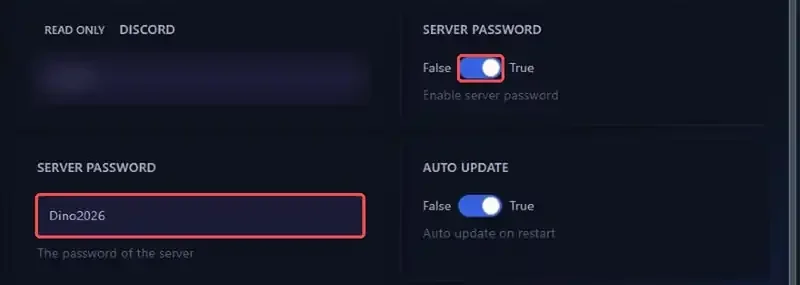
The panel saves each variable as soon as you leave the field. As long as the switch stays on False, the text in the field is ignored and the server stays open to everyone.
Do not change the password directly in the Game.ini file. The panel writes the Startup values into it on every start, so your change would be lost on the next restart.
2. Restart and check
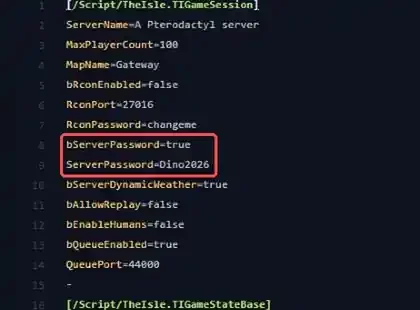
Restart the server with the Restart button to apply the password. To check that it is in place, open the Files tab, then the following file.
/TheIsle/Saved/Config/LinuxServer/Game.ini
The bServerPassword and ServerPassword lines should match your settings.
All that is left is to share the password with your players.
3. Remove the password
To open the server to everyone again, set the SERVER PASSWORD switch back to False in the Startup tab, then restart the server. There is no need to clear the text field, it is ignored while the switch is off.
The other server settings (name, player count, RCON, queue) are in the same place. They are covered in our guide “How to Configure Your The Isle Evrima Server”.
Need help?
If the password does not apply or your players can no longer connect, our support team is here to help. Open a ticket from your client area https://billing.winheberg.com, Technical department, selecting your The Isle server in the Related Product field.
Your The Isle server is now reserved for those who hold the key 🔒