Context
The Isle Evrima gets regular updates, and your server has to follow to stay compatible with your players' game. On your Winheberg The Isle server, updating is automatic, the server checks for a new version on every start and downloads it when needed.
This guide explains where this automatic update is set, how to check in the console that it ran, and what to do if you need to start again from a clean installation.
Prerequisites
- An active The Isle Evrima server on your Winheberg gaming panel
- Access to the gaming panel (
https://panel.winheberg.com/)
1. Check that automatic updates are on
Open your server on the gaming panel, then the Startup tab. The AUTO UPDATE variable (Auto update on restart) should be on True, which is the default setting.
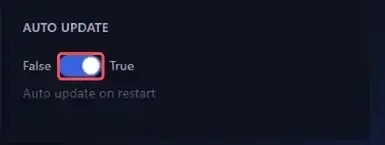
With this setting, SteamCMD (Valve's tool that installs Steam servers) checks the server version before every launch. On False, this step is skipped and the server starts straight away with the version already installed.
2. Restart and read the console
To run an update, simply restart the server with the Restart button. In the Console tab, SteamCMD shows its check right before the game starts.
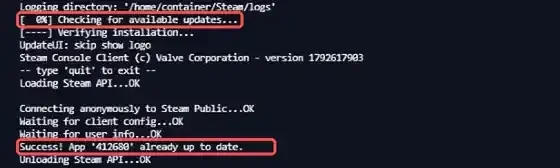
When your server is already up to date, the console shows these lines.
[  0%] Checking for available updates...
Success! App '412680' already up to date.
412680 is the Steam ID of The Isle dedicated server. If a new version is available, SteamCMD downloads it before launching the game, so the start takes a little longer.
Further down in the console, the game also reports its version while loading, on a LogNetVersion: Set ProjectVersion to line followed by the version number.
Since the update happens on restart, a scheduled restart keeps your server up to date with no action on your part. See our guide “How to Schedule Automatic Restarts with Schedules”.
3. Reinstall the server as a last resort
If your installation seems damaged, the Settings tab offers the Reinstall Server button. It stops the server and runs the original installation script again.
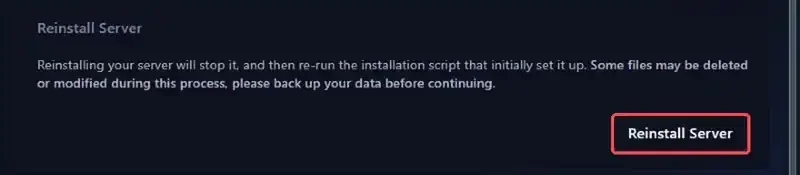
The panel warns that some files may be deleted or modified during the reinstall. Take a backup first, from the Backups tab. Our guide “How to Create and Restore a Backup of Your Gaming Server” walks you through it.
Need help?
If your server does not update or no longer restarts after an update, our support team is here to help. Open a ticket from your client area https://billing.winheberg.com, Technical department, selecting your The Isle server in the Related Product field.
Your The Isle server now follows every new Evrima release 🎮