Context
An email address is not only there to receive in its own mailbox. You can forward its email to another address, give it other names that land in the same place, or automatically notify your correspondents during your holidays.
On your Winheberg web hosting, these three settings sit in the settings of each address, in Plesk.
The Winheberg Plesk panel is displayed in French. Menu, field and button names are quoted below exactly as they appear on screen, followed by their English meaning.
| Tool | What it is for |
|---|---|
| Redirection (Forwarding) | Forward received email to one or more other addresses |
| Alias de messagerie (Email alias) | Receive in the same mailbox the email sent to other addresses of the domain, such as info@ and contact@ |
| Réponse automatique (Auto-reply) | Reply automatically to received email, during an absence for instance |
Prerequisites
- A Winheberg web hosting plan with access to the Plesk panel
- An email address already created, see our guide How to Create an Email Address on Your Plesk Hosting
1. Open the address settings
In the side menu, open Boîte mail (Mail), then click the address to set up in the list. Its page opens with four tabs, Général (General), Redirection (Forwarding), Alias de messagerie (Email aliases) and Réponse automatique (Auto-reply).
The settings of the next three tabs are saved together, with the OK button at the bottom of the page.
2. Forward email to another address
Open the Redirection tab and tick Activer la redirection de mails (Switch on mail forwarding). In Transférer les messages entrants à l'adresse mail suivante (Forward incoming messages to the following email address), enter the destination address.
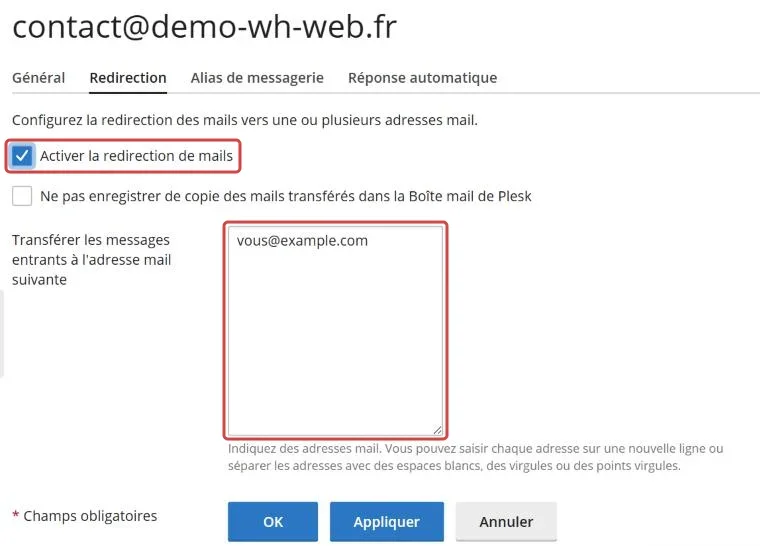
For several recipients, put one address per line, or separate them with spaces, commas or semicolons.
Leave Ne pas enregistrer de copie des mails transférés dans la Boîte mail de Plesk (Do not keep a copy of forwarded email in the Plesk mailbox) unticked to keep a copy of every email in the original mailbox. Tick it only if the address must only forward, without keeping anything.
Keeping a copy is safer. If the destination mail service rejects a forwarded email or marks it as spam, you still find it in your original mailbox.
3. Add an email alias
Open the Alias de messagerie tab. Enter the alias name in the Alias de messagerie field, the part after the @ is your domain. To add more, click Ajouter un alias de messagerie (Add email alias).
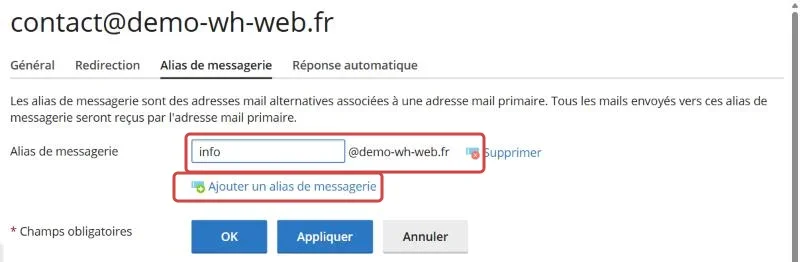
All email sent to the alias lands in the mailbox of the main address. An alias has neither mailbox nor password, so it takes no extra space.
4. Schedule an auto-reply
Open the Réponse automatique tab and tick Activer la réponse automatique (Switch on auto-reply).
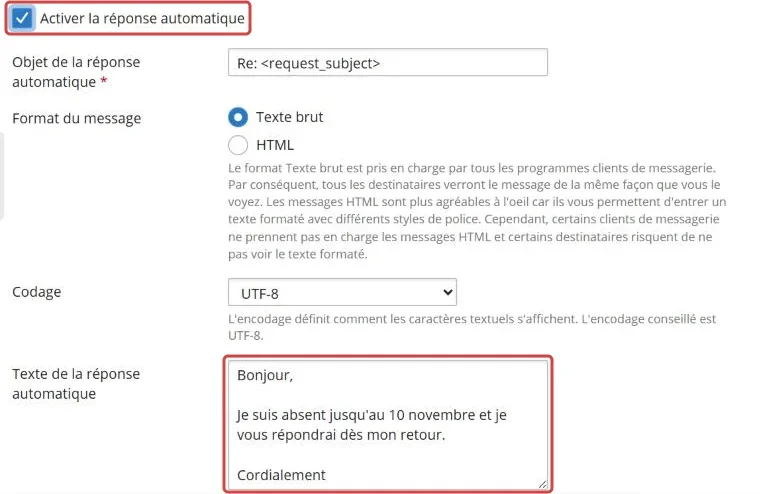
| Field | What to enter |
|---|---|
| Objet de la réponse automatique (Auto-reply subject) | Re: <request_subject> by default, which reuses the subject of the received email |
| Format du message (Message format) | Texte brut (Plain text), readable by every mail client, or HTML for formatted text |
| Codage (Encoding) | Keep UTF-8, it displays accented characters correctly |
| Texte de la réponse automatique (Auto-reply text) | The message sent to your correspondents |
Further down, other settings complete the reply.
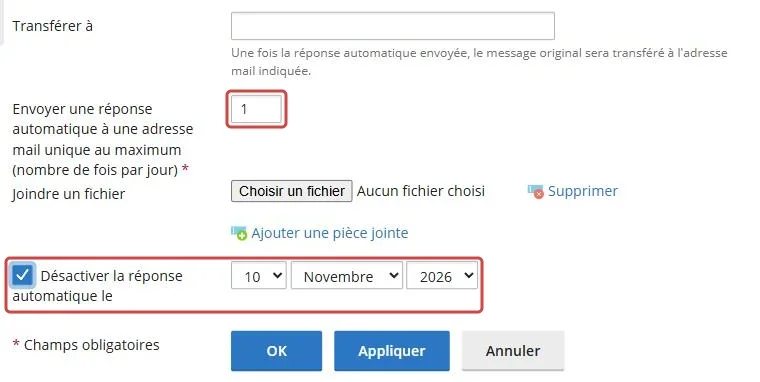
| Field | Effect |
|---|---|
| Transférer à (Forward to) | Forwards the original email to another address, after the reply is sent |
| Envoyer une réponse automatique à une adresse mail unique au maximum (nombre de fois par jour) (Send an auto-reply to a unique email address at most, times per day) | Limits the number of replies sent to the same correspondent each day, 1 by default |
| Joindre un fichier (Attach a file) | Adds an attachment to the reply |
| Désactiver la réponse automatique le (Switch off auto-reply on) | Stops the reply on the chosen date, tick it so you do not forget it when you come back |
Confirm with OK.
Troubleshooting
❌ Forwarded email does not arrive
Forwarding is on, but nothing reaches the destination.
- Check the spelling of the destination address in the Redirection tab
- Look in the spam folder of the destination mail service
- If the copy is kept, check from Messagerie Web (Webmail) that the email reached the original mailbox
❌ The auto-reply is only sent once
The daily limit applies.
- With the value
1, the same correspondent only gets one reply a day, even if they write several times - To test, send your email from an address that has not received a reply yet today
- Also check that the Désactiver la réponse automatique le date has not already passed
❌ Plesk rejects the alias
The chosen name is probably already used on the domain.
- Check in the address list that no mailbox already has this name
- Check that it is not already the alias of another address
Best practices
- Prefer an alias to forwarding for generic addresses of the same domain, email stays in a single mailbox
- Keep a copy of forwarded email, especially towards a free mail service
- Always set an end date for the auto-reply
- Keep the reply limit at
1per day, it prevents endless exchanges with another auto-reply - So that your replies do not land in spam, follow our guide How to Keep Your Emails Out of Spam with SPF, DKIM and DMARC
Need help?
If forwarding or an auto-reply still does not work, open a ticket with our support from your client area, Technical department, filling in the Related Product field with the web hosting concerned. Mention the address concerned and the time of a test email.
Your email now takes the right path, even during your holidays 📧