Context
Every email address of your Winheberg web hosting is protected by a spam filter. It gives a score to each received email and treats those above the chosen threshold as spam.
By default, the filter is on with an intermediate threshold, and spam is blocked. It is deleted without you ever seeing it, including a legitimate email wrongly classified. This guide shows you how to set the detection level, choose what happens to spam and allow or block senders.
The Winheberg Plesk panel is displayed in French. Menu, field and button names are quoted below exactly as they appear on screen, followed by their English meaning.
Prerequisites
- A Winheberg web hosting plan with access to the Plesk panel
- An email address already created, see our guide How to Create an Email Address on Your Plesk Hosting
1. Open the spam settings of the address
In the side menu, open Boîte mail (Mail). In the address list, click Paramètres (Settings) in the Sécurité (Security) column, next to the address to set up.

The Paramètres page of the address opens on the Spam section, with the Protection activée (Protection on) switch.
2. Set the detection level
The Score du spam (Spam score) field sets how strict the filter is.
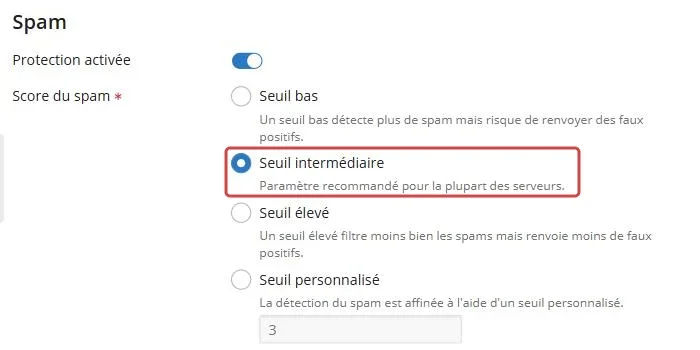
| Level | Effect |
|---|---|
| Seuil bas (Low threshold) | Catches more spam, at the risk of wrongly flagging legitimate email |
| Seuil intermédiaire (Intermediate threshold) | Default setting, suited to most mailboxes |
| Seuil élevé (High threshold) | Lets more spam through, but makes fewer mistakes |
| Seuil personnalisé (Custom threshold) | Set yourself the score from which an email is spam, the lower it is the stricter the filter |
Keep the Seuil intermédiaire to start with, and only adjust if too much spam gets through or if legitimate email gets caught.
3. Choose what happens to spam
The Type d'action pour le spam (Spam action type) field decides the fate of detected email.
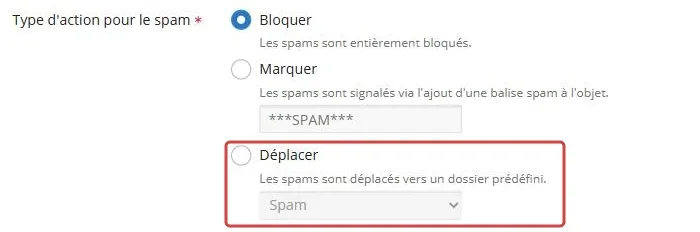
| Action | What happens |
|---|---|
| Bloquer (Block) | Spam is deleted, you never see it. This is the default setting |
| Marquer (Mark) | Spam reaches the inbox, with ***SPAM*** added at the start of the subject |
| Déplacer (Move) | Spam goes to the folder chosen in the list, to be set to Spam |
Choose Déplacer with the Spam folder. Spam no longer clutters your inbox, but an email wrongly flagged can still be recovered.
With Bloquer, a legitimate email taken for spam is lost without any trace in your mailbox. Avoid this setting on addresses that receive quotes, orders or invoices.
4. Allow or block senders
At the bottom of the page, the Liste blanche (Whitelist) holds the senders whose email is never treated as spam, and the Liste noire (Blacklist) those whose email always is.
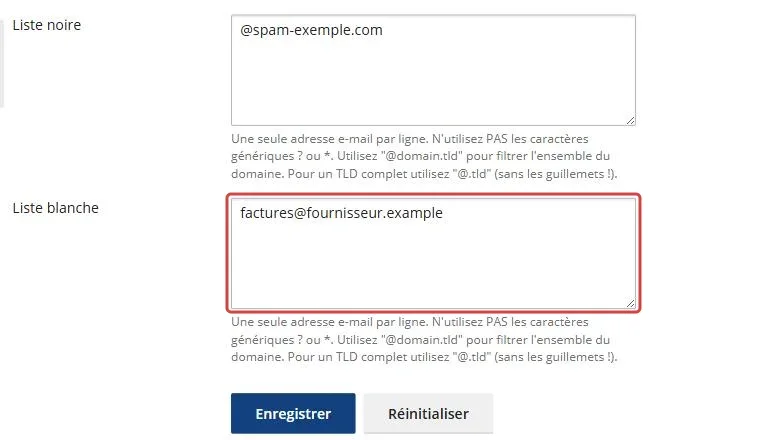
| Entry | What it targets |
|---|---|
name@domain.com |
A single address |
@domain.com |
Every address of a domain |
@.tld |
Every address of an extension, for instance @.xyz |
Finally, click Enregistrer (Save) to apply all your settings.
Troubleshooting
❌ An expected email never arrived
With the Bloquer action, the filter may have deleted it.
- Switch the action to Déplacer, towards the Spam folder
- Add the sender to the Liste blanche, then ask them to send their email again
- If the sender writes from several addresses of the same domain, enter
@their-domain.cominstead
❌ Too much spam still gets through
The filter lets through email you consider unwanted.
- Check that Protection activée is switched on
- Switch to Seuil bas, or to a Seuil personnalisé lower than the current setting
- Add the domains that spam you to the Liste noire, as
@domain.com
❌ The Spam folder does not show in your software
Your mail client does not display the folder where the filter stores spam.
- With IMAP, subscribe to the Spam folder from the folder settings of your software
- With POP3, only inbox email is downloaded, read the Spam folder from Messagerie Web (Webmail)
- To switch to IMAP, use the settings of our guide How to Create an Email Address on Your Plesk Hosting
Best practices
- Replace Bloquer with Déplacer as soon as the address is created
- Have a look at the Spam folder once a week, and empty it regularly so the mailbox does not fill up
- Add important senders to the Liste blanche, such as your bank, your suppliers or your payment platforms
- Never add a major mail provider domain such as
@gmail.comto the Liste noire, you would block all its users - Set each address separately, the filter is configured address by address
Need help?
If legitimate email keeps being filtered despite these settings, open a ticket with our support from your client area, Technical department, filling in the Related Product field with the web hosting concerned. Mention the address concerned, the sender and the time the email was sent.
Your mailbox stays clean without losing the email that matters 🔒