Context
On a RuneScape: Dragonwilds server hosted by Winheberg, the world loaded at startup is the one named in the DEFAULT WORLD NAME variable of the Startup tab. Each world is stored in a file of the same name, for example MyWorld.sav, in the RSDragonwilds/Saved/SaveGames folder.
This makes three operations simple, switching worlds without losing the current one, starting over on a new world and going back to the previous save. This guide covers all three, as we checked them on a Winheberg server.
Requirements
- An active RuneScape: Dragonwilds server on the Winheberg game panel
- Access to the server's Startup, Files and Backups tabs on panel.winheberg.com
Before resetting a world, create a backup from the Backups tab, see our guide How to Create and Restore a Backup of Your Gaming Server. A deleted world file cannot be recovered without it.
1. Switch worlds without losing the current one
Open the Startup tab, under CONFIGURATION in the side menu, and replace the value of DEFAULT WORLD NAME with a new name. Then click Restart at the top of the page.
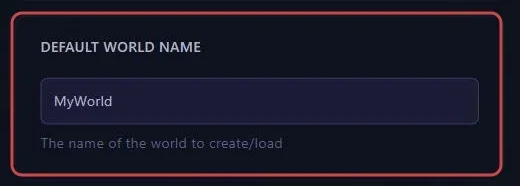
At startup, the server finds no save under that name and creates a new world. It says so in the console with a line like this one.
LogDomServerGameMode: No save found for configured world [NewWorld]; creating it
The previous world is left untouched, its file stays in RSDragonwilds/Saved/SaveGames.
Your players find the server by typing the world name in the Public tab of the worlds screen. Give them the new name, the old one will no longer return anything.
2. Go back to a previous world
The available worlds are the .sav files in the RSDragonwilds/Saved/SaveGames folder, visible in the Files tab. To load one again, set its exact name in DEFAULT WORLD NAME, without the .sav extension and with the same capital letters, then restart.
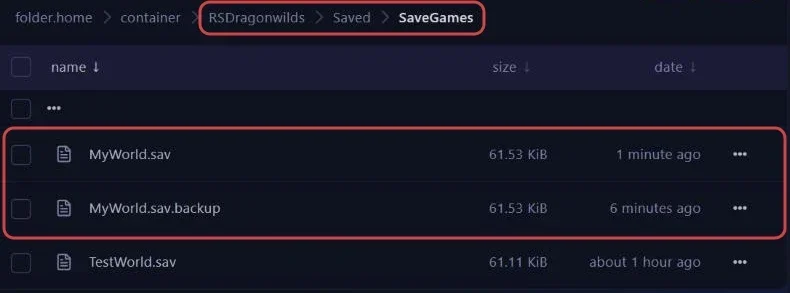
The server confirms the load with this line.
LogDomServerGameMode: Loading configured world [MyWorld] from save slot [MyWorld]
3. Reset the world and keep its name
To start from scratch under the same name, the world file has to be removed before startup.

- In the Console tab, click Stop and wait for the Offline state. If the server is running, its next automatic save would write the file again.
- In the Files tab, open
RSDragonwilds/Saved/SaveGames. - Rename the world file, for example
MyWorld.savtoMyWorld-old.sav, or delete it if you no longer want it. - Click Start. The server no longer finds a save under that name and creates a new world.
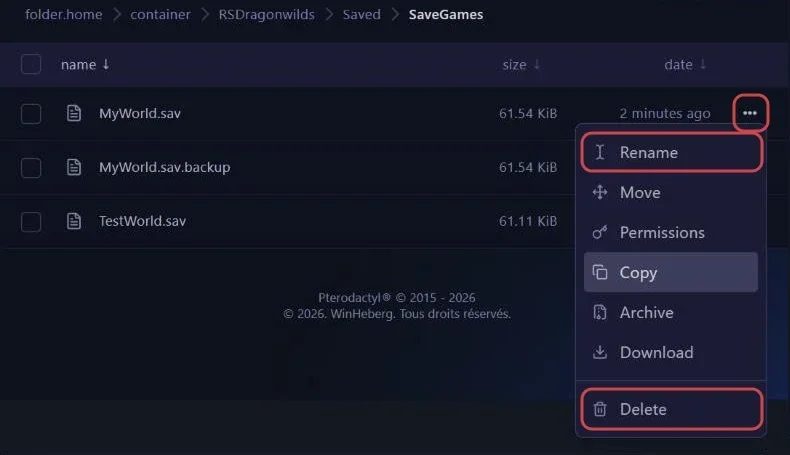
The MyWorld.sav.backup file does not protect the old world. We checked it, when MyWorld.sav is missing, the server ignores this copy and creates a new world.
4. Go back to the previous save
The game keeps the previous save in a .sav.backup file, for example MyWorld.sav.backup. In our tests, the server saved the world every 5 minutes, so this copy was about 5 minutes behind the main file.
It lets you undo an incident that happened just before the last save.
- Stop the server with Stop.
- Rename
MyWorld.savtoMyWorld-incident.savto keep it aside. - Rename
MyWorld.sav.backuptoMyWorld.sav. - Start the server with Start.
We checked that the server then loads the world as it was at the previous save. To go further back, you need a backup from the Backups tab.
Troubleshooting
❌ The server starts on a blank world
- Compare DEFAULT WORLD NAME with the names of the
.savfiles inRSDragonwilds/Saved/SaveGames, a single typo creates a new world - Check the capital letters,
MyWorldandmyworlddo not point to the same file - Set the exact name again, without the
.savextension, then restart, the old world was not erased
❌ The reset world came back
- The server was probably running during the change, its automatic save wrote the file again
- Start over by stopping the server first with Stop
❌ Players can no longer find the server
- After a world change, they must search for the new name in the Public tab
- See our guide "Why Your RuneScape: Dragonwilds Server Does Not Show in the List" for the other causes
Best practices
- Create a backup from the Backups tab before every reset, it is the only way to go back more than 5 minutes
- Rename old worlds rather than deleting them, a file of a few dozen kilobytes weighs nothing on your disk space
- Write down the exact name of each world, it is what you will set in DEFAULT WORLD NAME and what your players will search for
Need help
If a world will not load despite a correct name, open a ticket with our support team from your client area, Technical department, with the server in the Related Product field. Our team can look at the startup logs with you.
A new world is waiting for you. 🎮