Context
After every RuneScape: Dragonwilds update or hotfix, the server must move to the same version as your players. Jagex warns that a version mismatch shows up with every game update, and that server and players must stay on the latest version available.
On a Winheberg server, the update happens at startup, thanks to the AUTO UPDATE variable of the Startup tab. This guide shows how to check your server version and how to update it.
Requirements
- An active RuneScape: Dragonwilds server on the Winheberg game panel
- Access to the server's Startup, Console and Files tabs on panel.winheberg.com
How to tell whether your server needs an update
The most common sign is a server that can no longer be found or joined right after a game update. To be sure, compare the two versions.
The server version is written to its log at every startup. Open the RSDragonwilds/Saved/Logs/RSDragonwilds.log file from the Files tab and find this line.
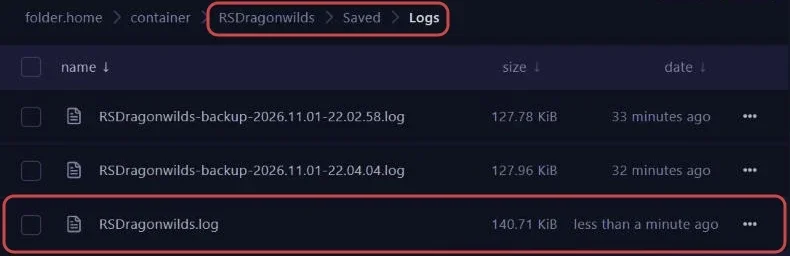
LogNetVersion: Set ProjectVersion to 1.0.1.3. Version Checksum will be recalculated on next use.
According to Jagex, the game version is shown in the top left corner of your players' screen. If the two numbers differ, the server needs an update.
1. Check the AUTO UPDATE variable
Open the Startup tab, under CONFIGURATION in the side menu, and check that the AUTO UPDATE variable is set to 1. This is the default value.
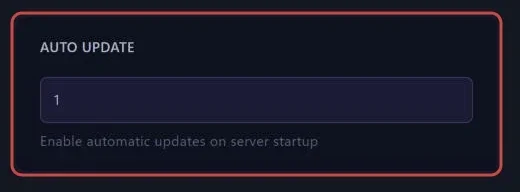
| Value | Effect at startup |
|---|---|
1 |
The server checks for an update before launching, and installs it if needed |
0 |
The server starts without checking, it stays on its current version |
2. Restart the server
Click Restart at the top of the page. Before launching the game, the server asks Steam, and the console shows lines like these.

[  0%] Checking for available updates...
Success! App '4019830' already up to date.
already up to date means the server already had the latest version. If an update exists, it is downloaded and installed at that point, before the server launches.
3. Check the new version
Once the server is online, open RSDragonwilds/Saved/Logs/RSDragonwilds.log again and check that the Set ProjectVersion line shows the same version as your players' game.
Logs from previous startups are kept in the same folder, as RSDragonwilds-backup-<date>.log. They let you find the version that ran before the update.
4. Update automatically every day
Since the update happens at startup, a scheduled restart is enough to keep the server up to date without thinking about it. Schedule one every night with our guide How to Schedule Automatic Restarts with Schedules.
The server saves the world automatically at regular intervals, every 5 minutes in our tests, and no save was written when it stopped. A restart can therefore lose the last minutes of play, schedule it at a time when nobody is playing.
Troubleshooting
❌ The server stays on the old version
- Check that AUTO UPDATE is set to
1in the Startup tab - Restart with Restart, the check only happens at startup
- Read the first console lines at startup, they show whether Steam found an update
❌ Players still cannot find the server after the update
- Check that your players have updated their game too
- See our guide "Why Your RuneScape: Dragonwilds Server Does Not Show in the List" for the other causes
Best practices
- Keep AUTO UPDATE at
1, your players get game updates automatically and the server has to follow - Create a backup from the Backups tab before a major game update, see our guide How to Create and Restore a Backup of Your Gaming Server
- Schedule a daily restart at night, it updates the server without cutting a game in progress
Need help
If the server does not update or refuses to start after an update, open a ticket with our support team from your client area, Technical department, with the server in the Related Product field. Our team can look at the startup console with you.
Your server is up to date. 🎮