Context
The Plesk Fichiers (Files) manager is enough to edit a few files. To upload a whole website, hundreds of images or a large archive, an FTP client such as FileZilla is much more convenient.
On your Winheberg web hosting, FTP access is always on for the system user of your subscription, and you can create additional FTP accounts restricted to one folder.
This guide covers finding your credentials, creating an additional account, setting up FileZilla with an encrypted connection and the most common errors.
The Winheberg Plesk panel is displayed in French. Menu, field and button names are quoted below exactly as they appear on screen, followed by their English meaning.
Prerequisites
- A Winheberg web hosting plan with access to the Plesk panel
- FileZilla Client, free, installed on your computer
SFTP relies on SSH access, which is not open when the Accès SSH (SSH access) line of the Paramètres d'hébergement (Hosting Settings) shows Interdit (Forbidden). Use encrypted FTP instead, known as FTPS, described in this guide. Your credentials and files travel just as protected.
1. Find your FTP credentials
Open your domain from Sites Web & Domaines (Websites & Domains), then click Infos de connexion (Connection Info) in the Fichiers et bases de données (Files & Databases) section of the Tableau de bord (Dashboard).
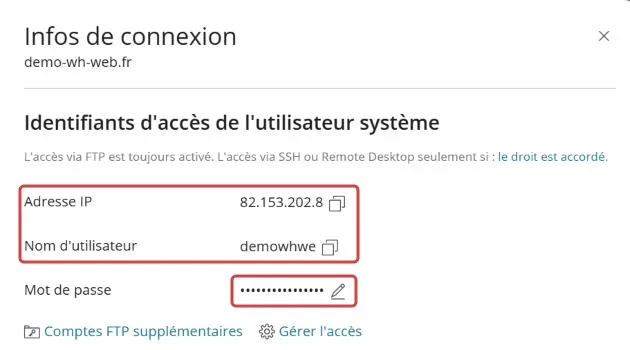
The Identifiants d'accès de l'utilisateur système (System user credentials) part gives the server Adresse IP (IP address) and the Nom d'utilisateur (User name). If you do not know the password, click the pencil next to Mot de passe (Password) to set a new one.
2. Create an additional FTP account
To give access to a contractor without handing over your main credentials, click FTP in the Fichiers et bases de données section, then Ajouter un compte FTP (Add an FTP Account).
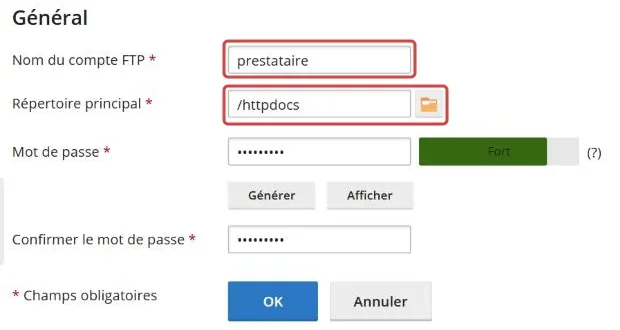
| Field | What to enter |
|---|---|
| Nom du compte FTP (FTP account name) | The login of the account |
| Répertoire principal (Home directory) | The folder the account will reach, / gives access to the whole webspace |
| Mot de passe (Password) | Click Générer (Generate) for a strong password, then Afficher (Show) to write it down |
Confirm with OK. The account only sees its Répertoire principal and its subfolders.
3. Set up FileZilla
In FileZilla, open the File menu, then Site Manager, and click New site.
| Setting | Value |
|---|---|
| Protocol | FTP - File Transfer Protocol |
| Host | Your Plesk panel address without https://, for instance plesk-wh01.winheberg.com |
| Port | 21, or empty |
| Encryption | Require explicit FTP over TLS |
| Logon Type | Normal |
| User | The Nom d'utilisateur of step 1, or the account created in step 2 |
| Password | The matching password |
Click Connect. On the first connection, FileZilla shows the server certificate. Check that it was issued for your panel address, tick the box to always trust it, then confirm.
Using the panel address as host, rather than the IP address, avoids the certificate name warning, since the server FTP certificate carries this name.
4. Transfer your files
The left side of FileZilla shows your computer, the right side your hosting. Drag files from one side to the other to upload or download them.
The website of your main domain sits in the httpdocs folder. Subdomains have their own folder, named after the subdomain.
Troubleshooting
❌ FileZilla shows "530 Login incorrect"
The server rejects the login or password.
- Check the login in Infos de connexion, it does not contain the domain name
- Set a new password, then copy it without any space before or after
- For an additional account, check that it still exists in the FTP list
❌ The connection stops on "Failed to retrieve directory listing"
Authentication succeeds, but the transfer of the file list is blocked.
- Check that the transfer mode is Passive, the FileZilla default
- Test from another network, some company firewalls block FTP
- Temporarily turn off your computer firewall or antivirus to confirm the cause
❌ Uploaded files do not show on the website
They were uploaded to the wrong place.
- Check that you are in
httpdocsfor the main domain - For a subdomain, open the folder named after it
- Clear your browser cache, or test in a private browsing window
Best practices
- Always choose the encrypted connection, never plain FTP
- Create one FTP account per contractor, restricted to the folder they need, and delete it when the job is done
- Do not let FileZilla store your passwords on a shared computer
- Back up before uploading a new version of your website, with our guide How to Back Up and Restore Your Website on Plesk
Need help?
If the connection still fails, open a ticket with our support from your client area, Technical department, filling in the Related Product field with the web hosting concerned. Attach the content of the log shown at the top of FileZilla, without the password.
Your files travel fast and encrypted to your hosting 🚀