Context
A hacked website shows signs that are often subtle. Visitors redirected to ad or scam websites, unknown PHP files in your webspace, a Google warning in search results or email sent in bulk from your domain should all alert you.
Most intrusions go through an outdated plugin or theme, or a weak password. On your Winheberg web hosting, Plesk gives you the tools to spot malicious files, understand how the attacker got in and bring your website back to a healthy state.
This guide follows the order to respect, from diagnosis to cleanup and then protection.
The Winheberg Plesk panel is displayed in French. Menu, field and button names are quoted below exactly as they appear on screen, followed by their English meaning.
Prerequisites
- A Winheberg web hosting plan with access to the Plesk panel
- The approximate time you noticed the problem
Before deleting anything, create a backup of the current state of the website with our guide How to Back Up and Restore Your Website on Plesk It keeps the traces useful for the investigation and protects you from a mistake.
1. Check the malware scanner
Open your domain from Sites Web & Domaines (Websites & Domains). In the Tableau de bord (Dashboard), Sécurité (Security) section, click Imunify.
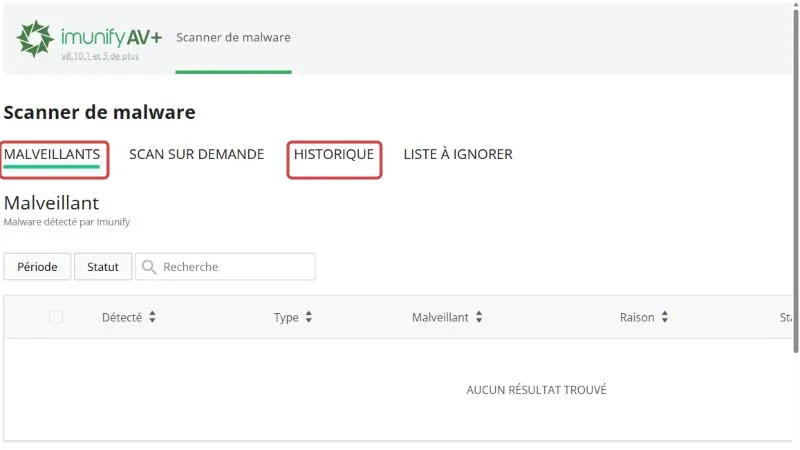
The Malveillants (Malicious) tab lists the files detected in your hosting, with their date in Détecté (Detected), the threat Type, the Raison (Reason) and the Statut (Status). The Historique (History) tab traces the actions already taken on these files.
Note the path of the flagged files, it often points to the plugin or folder the attacker went through.
2. Trace the origin in the logs
Open the domain Journaux (Logs), Outils Dévelop. (Dev Tools) section of the Tableau de bord, and search the Message field for the names of the files flagged by Imunify.
Lines of the access type show who called these files and when. A series of POST requests to an unknown PHP file, for instance in wp-content/uploads/, most often reveals a backdoor. Reading the logs is detailed in our guide How to Read the Error Logs of Your Website on Plesk
3. Check WordPress integrity
For a WordPress website, open the WordPress tab of your domain and click Vérifier l'intégrité de WordPress (Verify WordPress integrity). WP Toolkit compares the WordPress core files with those of the official version and flags the ones that were modified.
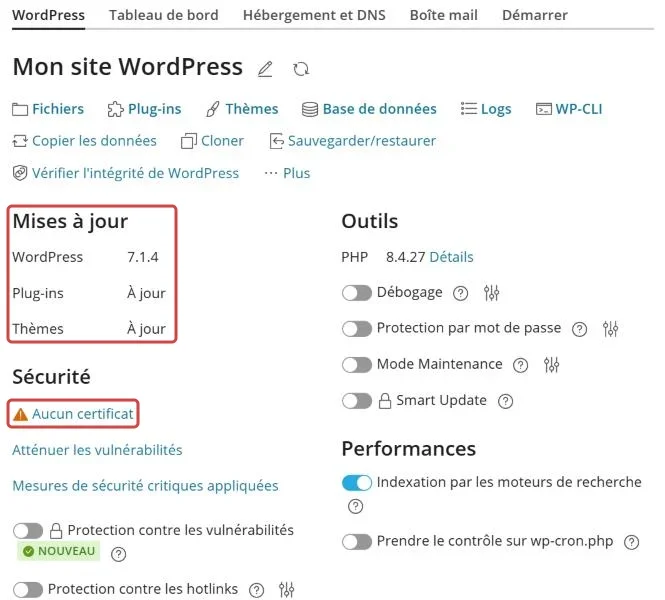
Take the opportunity to check the Mises à jour (Updates) block and the Plug-ins list, an abandoned or outdated plugin is the prime suspect.
4. Restore a clean backup
The safest way to get rid of an intrusion is to go back to an earlier backup. Open Sauvegarder et restaurer (Back Up and Restore), pick a backup dated before the first signs, and restore the Sites and the Base de données (Database).
A backup taken after the intrusion also contains the malicious files. Go back far enough, even if it means losing the content of the last few days, which you can enter again afterwards. Our automatic backups only go back over a rolling 7 days, so act fast or use a copy you downloaded.
If no clean backup exists, delete the files flagged by Imunify, reinstall the core of your application and replace each plugin with its latest version downloaded from the official source.
5. Change every password
An attacker who gained access may have collected credentials. Change them all, once the website is clean.
| Access | Where to change it |
|---|---|
| Plesk account | Your profile menu, at the top of the panel |
| System user and FTP | Domain Infos de connexion (Connection Info), pencil next to Mot de passe (Password), then FTP for additional accounts |
| Databases | Bases de données, Gestion des utilisateurs (User Management), then your website configuration with the new password |
| Website administrators | The profile of each administrator in your application |
| Email addresses | Boîte mail (Mail), by clicking each address |
6. Update and harden the website
Update your application, its plugins and its themes, then delete the ones you do not use. Also check that your domain uses PHP 8.2 or later in Paramètres PHP (PHP Settings), older versions no longer receive security fixes.
In the Sécurité section of the Tableau de bord, the Advisor tool lists security recommendations suited to your subscription.
Troubleshooting
❌ The website is hacked again after the cleanup
The entry point was not closed.
- Look in the logs for the requests that precede the files coming back
- Check that no old FTP account or unknown administrator still exists
- Restore an older backup and update everything before putting the website back online
❌ Google shows "This site may be hacked"
The warning stays until Google checks the website again.
- Add your website to Google Search Console, then open the section dedicated to security issues
- Once the cleanup is done, request a review from that same section
Best practices
- Turn on automatic updates for your application and its plugins
- Keep regular backups, and a downloaded copy outside the server
- Use unique passwords and a password manager
- Delete the plugins, themes and accounts you no longer use
- Regularly check the Imunify Malveillants tab
Need help?
If you cannot clean your website, or if our team reported suspicious activity to you, open a ticket with our support from your client area, Technical department, filling in the Related Product field with the web hosting concerned. Mention the date of the first symptoms and the files flagged by Imunify.
Your website is healthy again, and better protected than before 🔒