Context
When you move your email to your Winheberg web hosting, your new mailboxes start empty. Your old email stays with your previous host until you bring it over.
Plesk includes an import tool that connects over IMAP to your old mailbox and copies its content into the new one. According to the Plesk documentation, it takes every folder, keeps the date and read or unread state of each email, and deletes nothing from the original mailbox.
This guide covers the preparation, the import mailbox by mailbox, the advanced settings and the most common errors.
The Winheberg Plesk panel is displayed in French. Menu, field and button names are quoted below exactly as they appear on screen, followed by their English meaning.
Prerequisites
- A Winheberg web hosting plan with access to the Plesk panel
- Your domain added in Plesk, see our guide How to Connect an External Domain to Your Plesk Hosting
- The old mailbox still active, with IMAP access allowed by your old host
- The login and password of each old mailbox
Do not cancel your old mail service before checking the import. The tool copies email without erasing it, so the old mailbox remains your backup until the end.
1. Prepare the switch in the right order
The order of operations avoids losing email received during the switch.
| Step | Action |
|---|---|
| 1 | Create your addresses in Plesk with our guide How to Create an Email Address on Your Plesk Hosting |
| 2 | Switch the name servers or MX records to Winheberg |
| 3 | Wait for DNS propagation to end, up to 48 hours |
| 4 | Import the old email, including what arrived during propagation |
You can also create the address while importing, with the Créer une boîte mail (Create a mailbox) option described in step 3.
2. Open the email import
In Sites Web & Domaines (Websites & Domains), open your domain, then the Boîte mail (Mail) tab. Click Importation des e-mails (Email import).
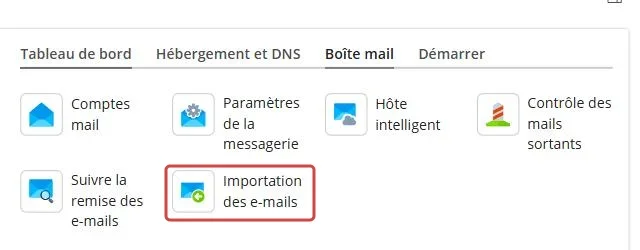
The Importer les e-mails (Import email) page opens. Click the Importer les e-mails button.
3. Enter the old mailbox and the target mailbox
The Ajouter une adresse mail pour importer (Add an email address to import) window opens.
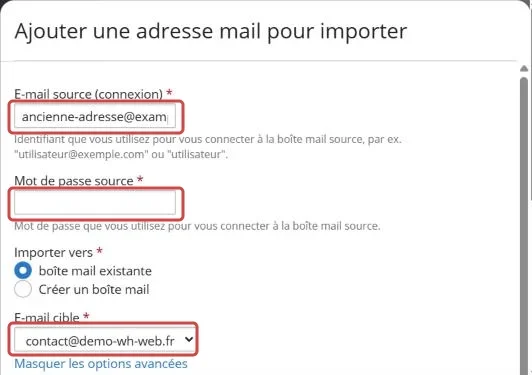
| Field | What to enter |
|---|---|
| E-mail source (connexion) (Source email, login) | The login of the old mailbox, most often the full address |
| Mot de passe source (Source password) | The password of the old mailbox |
| Importer vers (Import to) | boîte mail existante (existing mailbox) if the address already exists in Plesk, otherwise Créer une boîte mail (Create a mailbox) |
| E-mail cible (Target email) | The Plesk address that will receive the email |
With Créer une boîte mail, Plesk also asks for the address and password of the new mailbox.
4. Adjust the advanced options if needed
Plesk finds the server of the old mailbox on its own. If the connection fails, click Afficher les options avancées (Show advanced options) and fill them in from your old host's documentation.
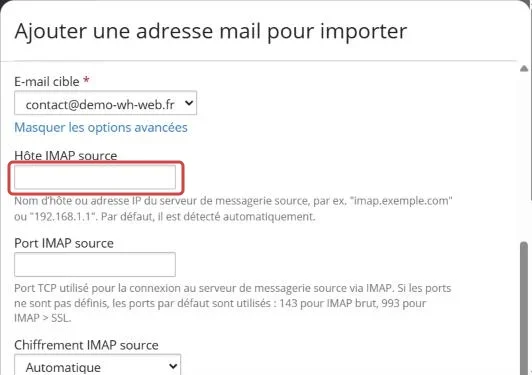
| Option | Role |
|---|---|
| Hôte IMAP source (Source IMAP host) | The IMAP server of the old host, for instance imap.old-host.com |
| Port IMAP source (Source IMAP port) | 993 for an encrypted connection, 143 without encryption, used by default when the field is empty |
| Chiffrement IMAP source (Source IMAP encryption) | Automatique (Automatic) by default, IMAP > SSL to enforce encryption, IMAP brut (déconseillé) (plain IMAP, not recommended) as a last resort |
| Délai IMAP source (Source IMAP timeout) | The connection waiting time, 30 seconds by default |
| Séparateur de dossier IMAP source (Source IMAP folder separator) | The character separating folders and subfolders, detected automatically by default |
Confirm with OK to start the import. Its duration depends on the number and size of the emails. Repeat the operation for each old mailbox.
5. Check the result
Open the new mailbox from Messagerie Web (Webmail) or your mail client. Compare the number of emails in the main folders with the old mailbox, especially the inbox and sent email.
A Plesk mailbox has a maximum size, shown in the Utilisation (Usage) column of the address list. If the old mailbox is bigger, clean it up before importing.
Alternative with a mail client
If the tool cannot connect to your old host, set up both mailboxes over IMAP in the same software, such as Thunderbird, then drag the folders of the old mailbox to the new one. The software then copies the email from one server to the other.
Troubleshooting
❌ The connection to the old mailbox fails
Plesk cannot authenticate with the old server.
- Check the login, some hosts expect the full address, others only the part before the
@ - Check that IMAP access is enabled in the settings of the old mail service
- Fill in the Hôte IMAP source manually in the advanced options
- For a Google account protected by 2-step verification, use an app password instead of the usual password
❌ Plesk reports an insecure connection
The old server offers no encryption or uses an unrecognised certificate.
- First try IMAP > SSL with port
993 - Only accept the unencrypted connection as a last resort, your password would then travel in clear text
- Change the password of the old mailbox once the import is done
❌ Folders are mixed up or flattened
The folder separator of the old server was not recognised.
- Fill in the Séparateur de dossier IMAP source, most often
.or/ - Run the import again for the mailbox concerned
Best practices
- Keep the old mail service active for a few weeks after the switch
- Import a test mailbox first, to validate the settings before the others
- Empty the trash and spam of the old mailbox before importing, they would take space for nothing
- Once the import is checked, protect your new addresses with our guide How to Set Up the Spam Filter of Your Email Address in Plesk
Need help?
If the import fails despite these checks, open a ticket with our support from your client area, Technical department, filling in the Related Product field with the web hosting concerned. Mention your old host and the error message shown by Plesk, without ever writing a password in the ticket.
Your old email follows you to Winheberg, leaving nothing behind 📦