Context
Once your WordPress website is live, three needs come up often. Getting back into the administration when the password is lost, keeping WordPress and its extensions up to date without thinking about it, and testing a change on a copy before making it on the real website.
On your Winheberg web hosting, WP Toolkit, the WordPress tool built into Plesk, covers all three without a reset email, a plugin or a file transfer.
This guide covers logging in without a password, changing the administrator password, automatic updates, cloning the website and carrying changes over.
The Winheberg Plesk panel is displayed in French. Menu, field and button names are quoted below exactly as they appear on screen, followed by their English meaning.
Prerequisites
- A Winheberg web hosting plan with access to the Plesk panel
- A WordPress website installed or imported in WP Toolkit, see our guide How to Host a WordPress Website on Plesk
1. Open WP Toolkit
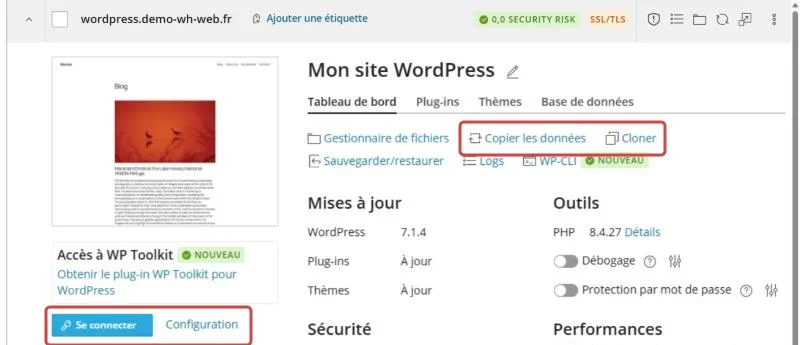
In the side menu, click WordPress. Each website shows as a card, with its shortcuts, the state of its updates and its tools.
2. Get back into the administration
Log in without a password
On the website card, click Se connecter (Log in). WP Toolkit opens the WordPress administration already logged in with the administrator account, without asking for a password.
Change the administrator password
On the website card, click Configuration (Setup). The panel shows the Administrateur (Administrator) login and email address.
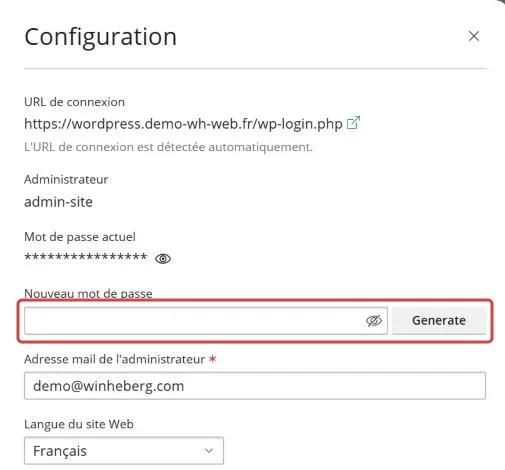
Enter a Nouveau mot de passe (New password), or click Generate to create a strong one, then click Modifier (Change). Take the opportunity to check the Adresse mail de l'administrateur (Administrator email), it is the one that receives the WordPress reset links.
Store the new password in a password manager. Se connecter remains available as a fallback as long as you have access to Plesk.
3. Set up automatic updates
On the website card, in the Mises à jour (Updates) section, click Paramètres de mises à jour automatiques (Autoupdate settings).
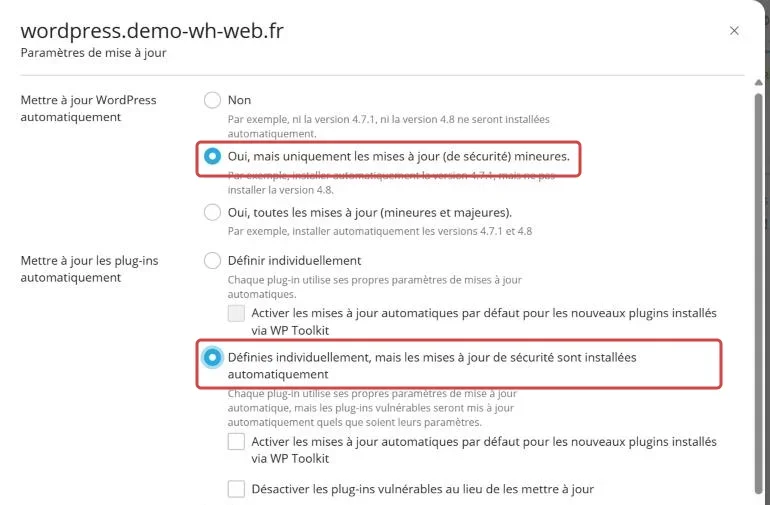
| Setting | Recommended choice | Why |
|---|---|---|
| Mettre à jour WordPress automatiquement (Update WordPress automatically) | Oui, mais uniquement les mises à jour (de sécurité) mineures (Yes, but only minor (security) updates) | Minor versions fix flaws without changing how the website works |
| Mettre à jour les plug-ins automatiquement (Update plugins automatically) | Définies individuellement, mais les mises à jour de sécurité sont installées automatiquement (Set individually, but security updates are installed automatically) | A vulnerable plugin is fixed without waiting |
| Mettre à jour les thèmes automatiquement (Update themes automatically) | Définies individuellement, mais les mises à jour de sécurité sont installées automatiquement | Same logic for themes |
Click Save to apply.
A major update can break a poorly maintained plugin or theme. Run it on a clone first, as explained in the next step, then on the live website.
4. Clone the website for testing
On the website card, click Cloner (Clone). WP Toolkit copies the files and the database, then adjusts the website address in the copy.
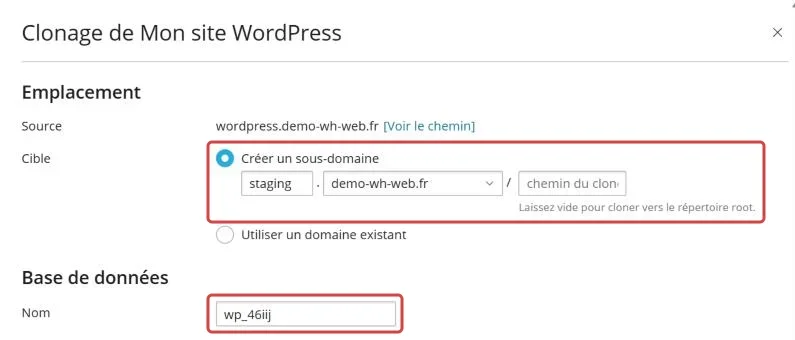
- In Cible (Target), keep Créer un sous-domaine (Create subdomain), WP Toolkit suggests
staging, which givesstaging.example.com - In Base de données (Database), keep the suggested Nom (Name), it is a new database created for the clone
- Click Démarrer (Start)
The clone then shows up as a second website in WP Toolkit. Run your tests on it, the live website is not touched.
WP Toolkit turns off Indexation par les moteurs de recherche (Search engine indexing) on the clone by itself. Also turn on Protection par mot de passe (Password protection) on its card, so that nobody lands on it by chance.
5. Carry the changes over to the live website
Once your tests are approved, open the clone card and click Copier les données (Copy data). Choose the live website as the target.
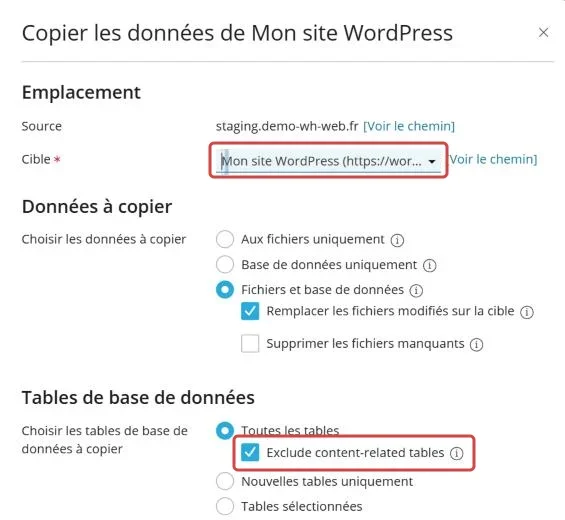
| Option | When to use it |
|---|---|
| Aux fichiers uniquement (Files only) | You changed a theme, a plugin or files |
| Base de données uniquement (Database only) | You changed settings or content |
| Fichiers et base de données (Files and database) | You redid everything on the clone |
For the database, Toutes les tables (All tables) is selected by default with the Exclude content-related tables box ticked. Settings are then copied without overwriting the content of the live website, such as posts, comments or orders received during your tests. Also keep Créer un point de restauration (Create a restore point) ticked, it lets you undo the operation, then click Démarrer.
If you untick Exclude content-related tables, the database of the live website is replaced with that of the clone. Everything published or ordered on the live website since the cloning would be lost.
Troubleshooting
❌ Log in opens the login page instead of the administration
WP Toolkit cannot find the saved administrator.
- Open Configuration and check the Administrateur shown
- Change its password from that panel, then log in with it
❌ An automatic update broke the website
A plugin or theme is not compatible with the new version.
- Restore the website from Sauvegarder/restaurer (Back up/Restore) on its card, or with our guide How to Back Up and Restore Your Website on Plesk
- Read the exact message in the logs, with our guide How to Read the Error Logs of Your Website on Plesk
- Turn off automatic updates for the plugin at fault until it is fixed
❌ Cloning fails
Your plan is short of space or of a resource.
- Check the remaining disk space in Statistiques (Statistics)
- Check that your plan allows one more subdomain and one more database
Best practices
- Keep one administrator account per person, with a login other than
admin - Keep security updates automatic and test major updates on a clone
- Delete the clone when you no longer need it, it uses space and a database
- Delete unused plugins and themes, they remain a way in even when disabled
Need help?
If you cannot regain control of your WordPress website, open a ticket with our support from your client area, Technical department, filling in the Related Product field with the web hosting concerned. Give the website address and the operation that fails.
Your WordPress is up to date, under control and testable without risk 🛠️