Context
Your website answers at two addresses, example.com and www.example.com. For search engines, these are two identical websites, which dilutes your ranking. The fix is to choose a main address and redirect the other one to it, with a 301 redirect, which signals a permanent move.
On your Winheberg web hosting, Plesk handles this with a single setting. The same logic applies after a redesign, to send visitors and search engines from an old page to the new one, this time with the .htaccess file.
This guide covers choosing the main address, redirecting a page, a folder or a whole domain, and checking the result.
The Winheberg Plesk panel is displayed in French. Menu, field and button names are quoted below exactly as they appear on screen, followed by their English meaning.
Prerequisites
- A Winheberg web hosting plan with access to the Plesk panel
- An SSL certificate that covers both addresses, with and without
www, see our guide How to Generate a Let's Encrypt SSL Certificate for Your Website
Without a certificate for the www address, the browser shows a security warning before it even follows the redirect. Make sure to tick the www option when issuing the certificate.
1. Choose the main address
Open your domain from Sites Web & Domaines (Websites & Domains), then the Hébergement et DNS (Hosting & DNS) tab and the Hébergement (Hosting) entry. In Domaine préféré (Preferred domain), choose the address to keep, then click Enregistrer (Save).
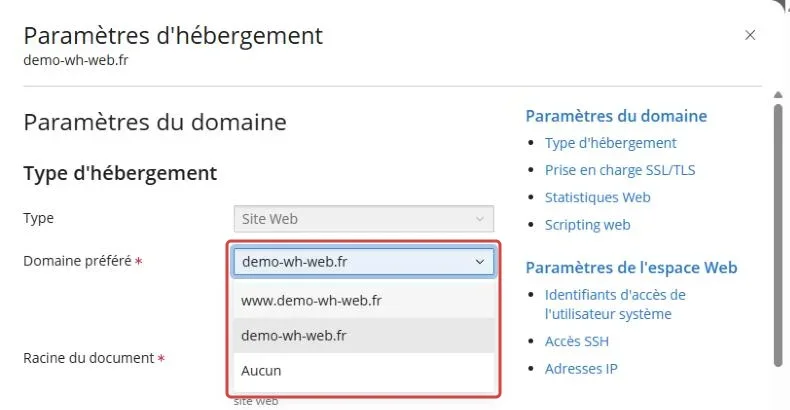
| Value | Result |
|---|---|
www.example.com |
example.com is redirected to www.example.com |
example.com |
www.example.com is redirected to example.com |
| Aucun (None) | Both addresses show the website, without redirect, to avoid |
The redirect keeps the path and parameters of the requested page, and switches to HTTPS along the way. On our test server, http://www.example.com/page?x=1 thus leads in a single redirect to https://example.com/page?x=1.
Both choices are equal for search engines. What matters is to choose one, stick to it and use the same form everywhere, in your links, your social networks and the settings of your CMS.
2. Redirect an old page
For page by page redirects, Plesk uses the .htaccess file placed at the root of your website, most often the httpdocs folder.
Open Fichiers (Files) in the side menu, then the root folder of the website. Click .htaccess to open it in the editor. If it does not exist, create it with the + button, then Créer un fichier (Create file), naming it exactly .htaccess.
Add one line per page to redirect, at the very top of the file, then click Enregistrer (Save).
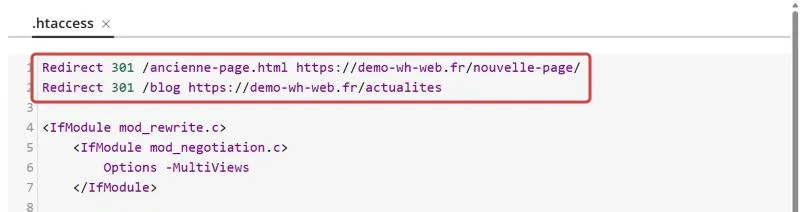
Redirect 301 /old-page.html https://example.com/new-page/
Redirect 301 /blog https://example.com/news
The first part is the path of the old page, without the domain. The second is the full address of the new page.
On a WordPress website, place your lines above # BEGIN WordPress. WordPress rewrites everything between # BEGIN WordPress and # END WordPress, your redirects would be erased there.
3. Redirect a folder or a whole domain
When a whole section is renamed, a single line is enough to redirect each page to its counterpart.
RedirectMatch 301 ^/blog/(.*)$ https://example.com/news/$1
To send a whole old domain to the new one, add the old domain in Plesk as described in How to Connect an External Domain to Your Plesk Hosting, then place these lines in the .htaccess of its website.
RewriteEngine On
RewriteRule ^(.*)$ https://new-domain.com/$1 [R=301,L]
Each page of the old domain then points to the same page of the new one.
4. Check your redirects
Open the old address in a private browsing window, you should land on the new one. To see the exact code returned, use curl from a terminal, it is also available on Windows 10 and 11.
curl -I https://www.example.com/old-page.html
The expected answer starts with HTTP/1.1 301 Moved Permanently and gives the new address on the Location line.
Troubleshooting
❌ The browser shows "Too many redirects"
Two settings keep sending the visitor back and forth, often the Plesk Domaine préféré and the address set in your CMS.
- On WordPress, open Settings, then General, and enter in WordPress Address and Site Address the same form as the Domaine préféré
- Remove from
.htaccessany rule that adds or removeswww, Plesk already does it - Clear the browser cache or test in private browsing
❌ The redirect does not happen
The file is not read, or the browser shows an old answer.
- Check that
.htaccesssits in the document root of the website, shown in Hébergement on the Racine du document (Document root) line - Check the spelling of the path, which starts with
/and is case sensitive - Test in private browsing, browsers remember 301 redirects they already followed for a long time
❌ The website shows a 500 error after the change
A line of .htaccess contains a syntax error.
- Remove the last line added and save to confirm the website comes back
- Read the exact message in the logs, with our guide How to Read the Error Logs of Your Website on Plesk
Best practices
- Point each old page directly to its final destination, without chaining several redirects
- Keep your redirects for at least a year, the time for search engines and outside links to update
- Redirect an old page to the page that really replaces it, not to the home page
- Write your redirects down in a document, to know why each line exists
- Back up before a large set of redirects, with our guide How to Back Up and Restore Your Website on Plesk
Need help?
If a redirect does not work or if your website loops, open a ticket with our support from your client area, Technical department, filling in the Related Product field with the web hosting concerned. Give the old address and the expected one.
One address, old pages that lead to the right place, your search ranking says thank you 🔀